Product Creator (PC) is an app that runs on your own computer. You can install it from the project on GitHub. The Emperor relay lets an AI client such as ChatGPT, Claude, or Cursor reach your PC over the internet without opening any port on your network: PC keeps one outgoing connection to the relay, and the relay passes each bot request through it.
You manage everything on one screen: Services → Product Creator.
Who can see it
Important
Product Creator is shown only to the owner of a personal workspace.
- Every user who registers on their own gets a personal workspace and is its owner. They see Services → Product Creator there. This is the place to start after self-registration.
- In corporate and team workspaces (including those where you are the owner) the menu item is not shown, and the page address
/app/<workspace>/product-creatoris not available. Use the workspace switcher in the top bar and pick your personal workspace. - Devices and tokens belong to you personally, not to a company workspace. Other members of a team cannot see them.
Open the screen
- Sign in and switch to your personal workspace.
- In the left sidebar open Services → Product Creator. The page is
/app/<workspace>/product-creator.
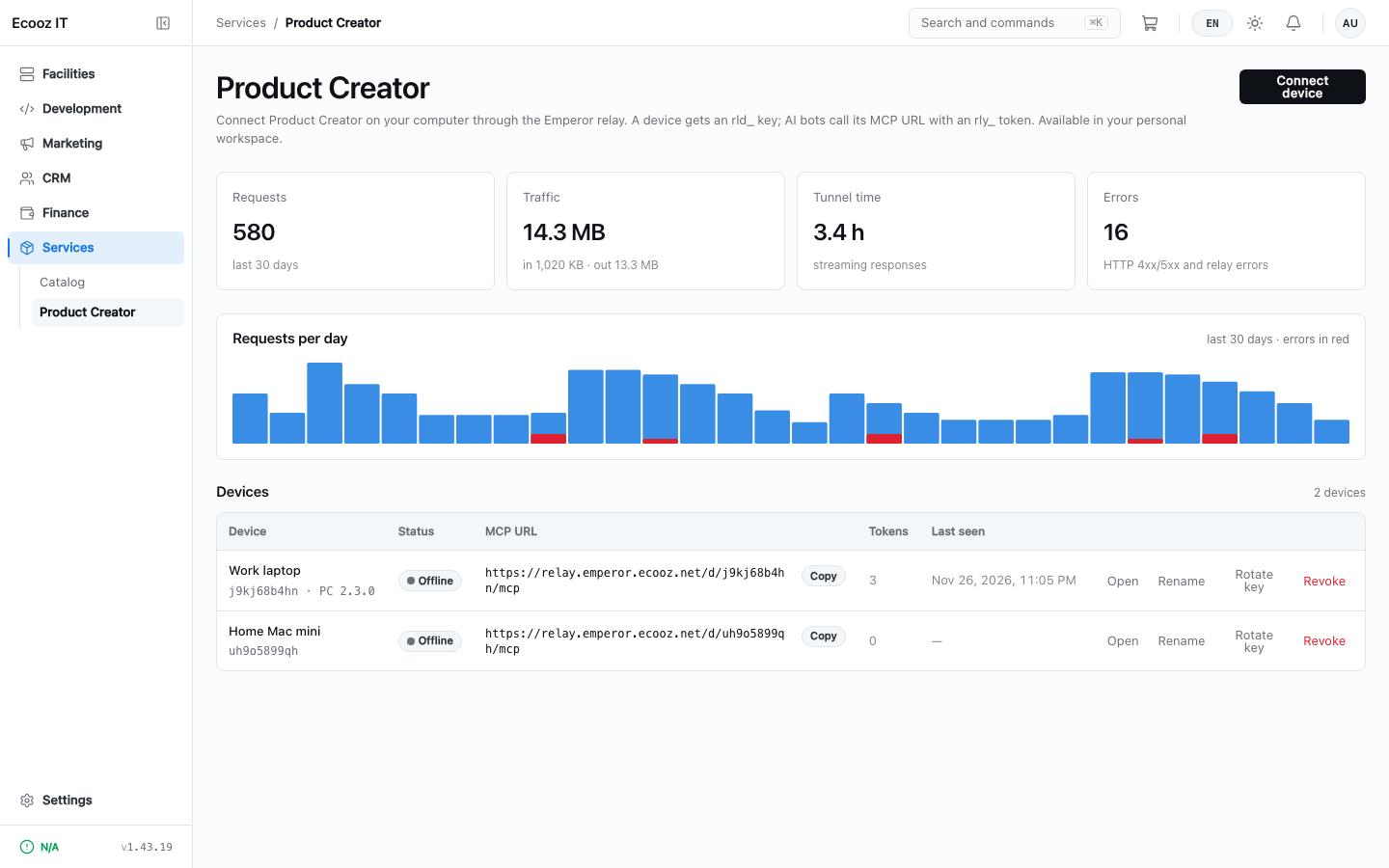
The screen shows usage cards for the last 30 days (requests, traffic, tunnel time, errors), a requests-per-day chart, and the Devices list with its status (Online or Offline), MCP URL, token count, and last seen time.
Connect a device
-
Click Connect device.
-
Enter a Device name for the computer that runs Product Creator (for example
Work laptop) and click Create. -
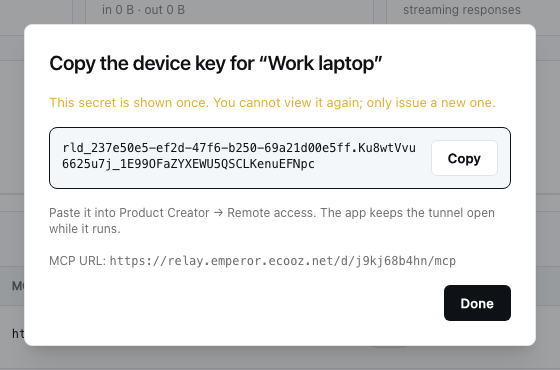
Emperor shows the device key. It starts with
rld_.Click Copy. The key is shown once. You cannot view it again; if you lose it, rotate the key (see below). Store it like a password.
-
In Product Creator open Remote access and paste the key. PC keeps the tunnel open while it runs. The device turns Online in the list.
-
Click Done.
You can have up to 5 devices.
Give an AI bot access
Every device has its own MCP URL, for example https://relay.emperor.ecooz.net/d/<slug>/mcp. A bot needs this URL and a bot token.
-
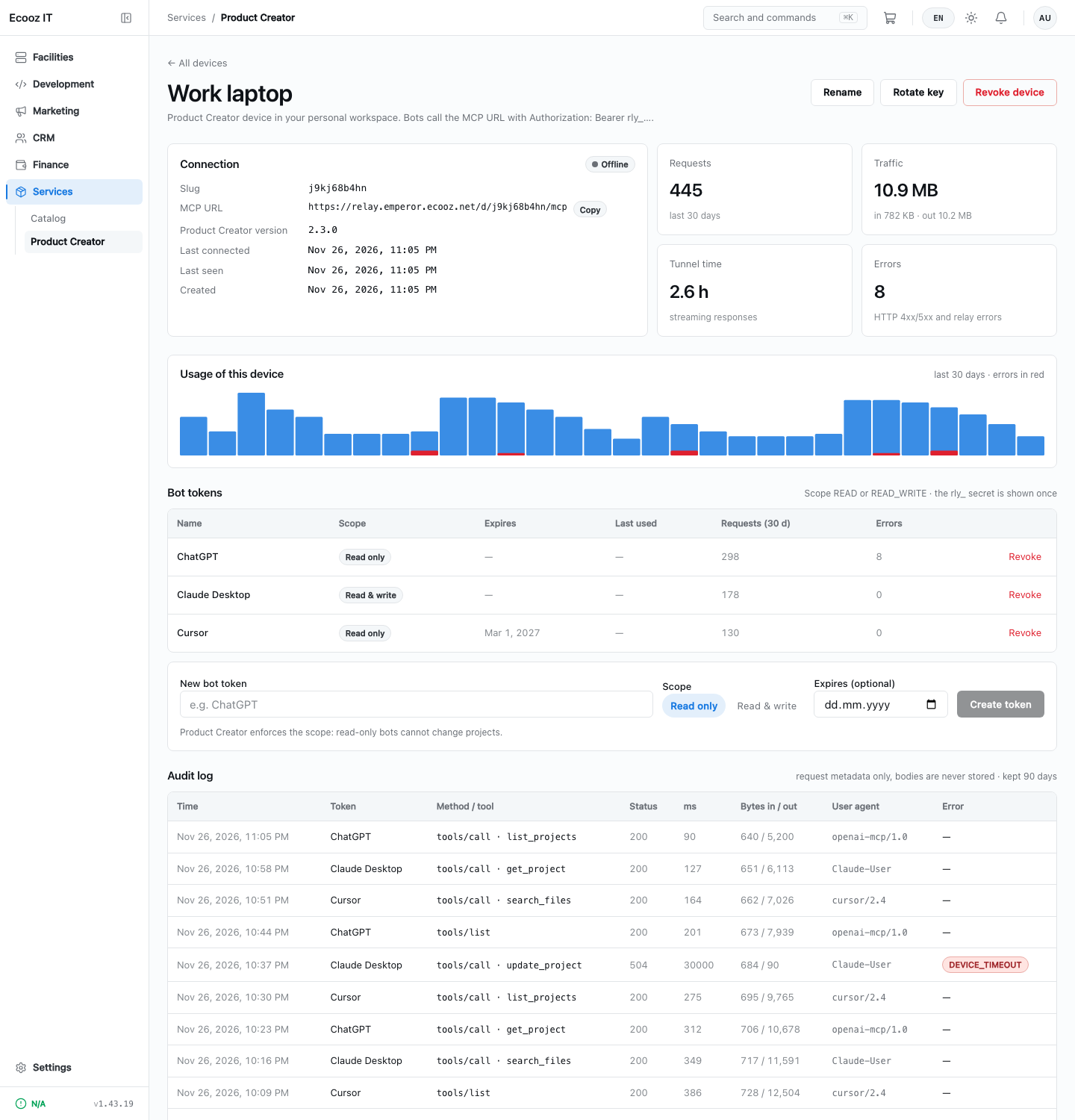
Click Open on the device row.
-
Under Bot tokens enter a Name (for example
ChatGPT). -
Choose the scope:
- Read only (
READ) — the bot can read, but cannot change projects; - Read & write (
READ_WRITE) — the bot can also change data.
Product Creator on your computer enforces the scope.
Note
The device page shows the Local MCP mode of Product Creator on that computer: Read only, Read & write or Unknown (older Product Creator versions do not report it). If a Read & write token belongs to a device whose local mode is Read only, Emperor shows the warning Token allows write, but the device is read-only: effective access is read-only. The bot can then only read, because the stricter of the two settings applies. Switch the local mode in Product Creator to allow writes. The warning is informational; there is no warning for other combinations or for an unknown mode.
- Read only (
-
Optionally set Expires. An expired token stops working like a revoked one.
-
Click Create token and copy the token. It starts with
rly_and is shown once.
The bot needs this address (the MCP URL) and the bot token. The exact setup depends on the AI agent you use: check that agent's documentation on adding an MCP server.
You can have up to 25 active tokens per device. Create a separate token for each client, so you can revoke one without affecting the others.
If the client reports 401, the token is wrong, revoked, or expired. If the device is Offline, start Product Creator on that computer.
Usage and audit
- The cards and the chart on the main screen cover all your devices.
- The device page shows the same for that device, with a requests and errors column for each token.
- Audit log lists recent requests: time, token, method or tool, status, duration, bytes in and out, and user agent. Only metadata is stored, never request or response bodies. Entries are kept for 30 days.
Rename, rotate and revoke
- Rename changes only the device name. The MCP URL, key and tokens stay the same.
- Rotate key issues a new device key. The old key stops working at once and the tunnel closes. Copy the new key and paste it into Product Creator.
- Revoke on a token cuts off the bots that use it immediately.
- Revoke device removes the device, its key, all its bot tokens, and its tunnel immediately.
Limitations
- Bot tokens cannot be renamed or rotated. To replace a token, Revoke it and create a new one, then update the client.
- The screen is available only in your personal workspace (see above).
- A secret (
rld_key orrly_token) cannot be shown again.